Project Management
A practical guide to creating, selecting, and managing projects in CatPro. Connect stores, switch between them, and control access from a single dashboard.
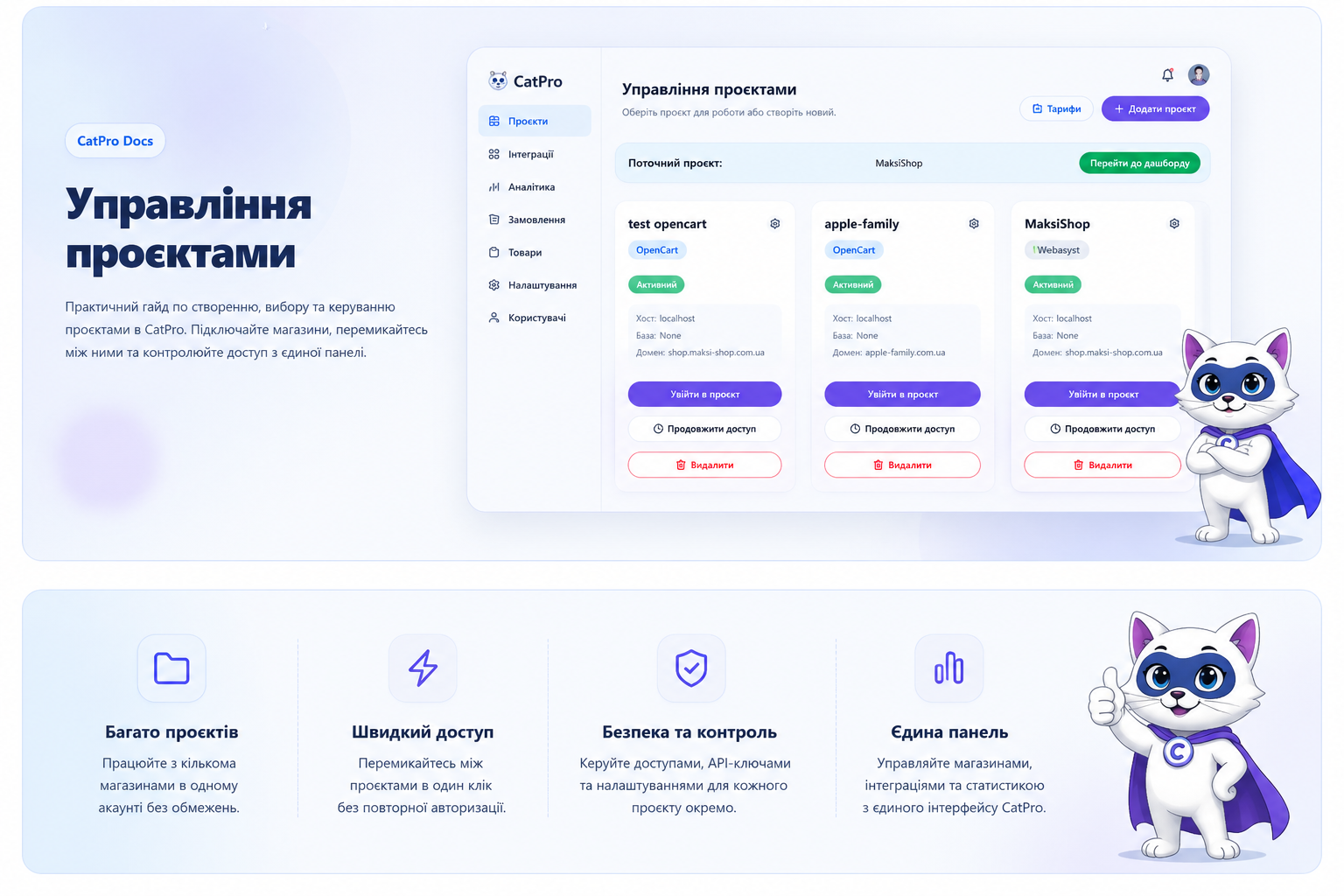
What is a Project in CatPro
A project is a separate store or site connected to the CatPro platform. Each project has its own CMS, domain, database, settings, integrations, and access.
- Connect stores on OpenCart, Webasyst, and other platforms.
- Create separate projects for different clients or businesses.
- Use test projects to verify modules and integrations.
- Manage all stores from one CatPro account.
Current Project
The current project block shows which store you are currently working with. The dashboard opens for it, integrations are launched, and main actions are performed.
- Check the active project before making important changes.
- Click the button to go to the dashboard for quick access.
- After selecting another project, CatPro changes the working context.
Project Card
Each project is displayed as a separate card. It contains the main technical information and buttons for quick store management.
- Name — the internal name of the project in CatPro.
- CMS Type — the store platform: OpenCart, Webasyst, or another system.
- Status — shows whether the project is active.
- Host — server or connection address.
- Database — the database the project works with.
- Domain — the main address of the store.
Creating a New Project
- Click the Add Project button.
- Enter the project name.
- Select the store platform.
- Add the domain and connection parameters.
- Save the project.
FAQ
Can I have multiple projects?
Yes. You can create multiple projects according to your tariff conditions.
Can different CMS be connected?
Yes. CatPro can work with OpenCart, Webasyst, and other supported platforms.
What to do if the project does not open?
Check the connection parameters, domain, server availability, or contact CatPro support.